

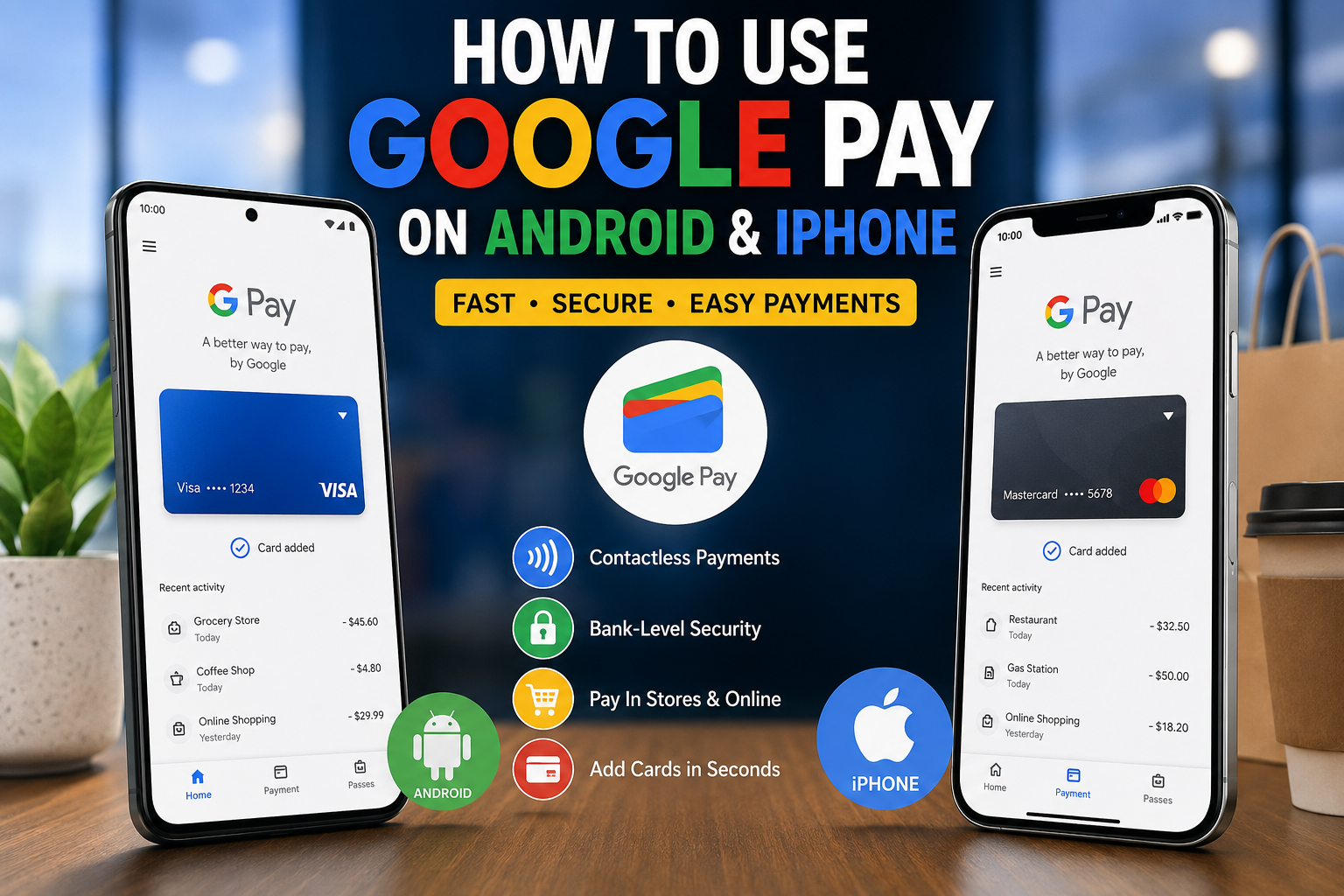
Introduction
Google Pay is one of the most convenient ways to make cashless payments using your smartphone. Whether you’re paying in a store, shopping online, or sending money where supported, Google Pay offers a fast and secure alternative to carrying cash or physical bank cards.
If you’re new to mobile payments, this guide explains how to set up and use Google Pay on both Android and iPhone, along with its key features, benefits, and security tips.
What Is Google Pay?
Google Pay is Google’s digital wallet and payment service. It allows users to store eligible debit and credit cards on their devices and make contactless payments using Near Field Communication (NFC).
Depending on your country and your bank’s support, Google Pay can also be used for:
- Contactless in-store purchases
- Online shopping
- In-app payments
- Transit fares in supported cities
- Loyalty cards and gift cards
- Peer-to-peer payments in selected regions
Google Pay works with many major banks and payment networks, although available features vary by country.
How Google Pay Works
Google Pay replaces your physical card information with a secure, encrypted token during transactions. This means your actual card number is not shared with merchants when you pay.
Here’s how it works:
- Add your eligible debit or credit card to Google Pay.
- Verify your card with your bank if required.
- Unlock your phone.
- Hold it near a contactless payment terminal.
- Wait for the confirmation that your payment has been completed.
This process usually takes only a few seconds.
Requirements for Using Google Pay
Before setting up Google Pay, make sure you have:
- A compatible Android phone or iPhone.
- A Google account.
- A supported debit or credit card.
- Internet access during setup.
- NFC enabled (for contactless payments on Android).
- A screen lock such as a PIN, password, fingerprint, or facial recognition.
READ ALSO: Top 10 Most Popular Gift Cards in the UK (2026 Guide)
How to Use Google Pay on Android
Android provides the most complete Google Pay experience because Google Pay is designed primarily for Android devices.
Step 1: Download or Open Google Wallet
Many modern Android phones come with Google Wallet pre-installed. If it isn’t available, download it from the Google Play Store.
Step 2: Sign In
Open the app and sign in with your Google account.
Step 3: Add Your Payment Card
Tap Add to Wallet and choose Payment card.
You can:
- Scan your card using the camera.
- Enter the card details manually.
Step 4: Verify Your Card
Your bank may ask you to verify the card through:
- SMS verification
- Email verification
- Banking app confirmation
- Customer support
Complete the verification process before using the card.
Step 5: Enable NFC
Go to:
Settings → Connected Devices → NFC
Turn NFC on if it isn’t already enabled.
Step 6: Make Your First Payment
- Unlock your phone.
- Hold the back of the phone near the payment terminal.
- Wait for the checkmark or confirmation message.
Your payment is complete.
How to Use Google Pay on iPhone
Google Pay works differently on iPhone because Apple restricts third-party apps from using NFC for contactless payments. Apple Pay remains the only service that can perform tap-to-pay transactions using the iPhone’s NFC chip.
However, Google Pay services are still available in some regions for:
- Managing supported payment methods
- Paying within certain Google services
- Making online purchases where Google Pay is offered
- Viewing transaction information
Setting Up Google Pay on iPhone
- Download the Google Pay app (or Google Wallet, where available) from the App Store.
- Sign in with your Google account.
- Add an eligible payment card.
- Verify your card if prompted.
For in-store contactless payments with an iPhone, you’ll generally need to use Apple Pay rather than Google Pay.
Key Features of Google Pay
Google Pay includes several useful features that make everyday payments easier.
Contactless Payments
Pay at stores that accept contactless cards without inserting your physical card.
Online Checkout
Many websites and apps allow you to complete purchases quickly using Google Pay.
Secure Transactions
Instead of sharing your real card number, Google Pay uses tokenization to protect your payment information.
Digital Wallet
Store:
- Debit cards
- Credit cards
- Loyalty cards
- Boarding passes (where supported)
- Event tickets (where supported)
Transaction History
View recent purchases directly within the app to help you keep track of your spending.
Benefits of Using Google Pay
Many users prefer Google Pay because it offers:
- Fast checkout at supported stores.
- Reduced need to carry physical wallets.
- Strong security protections.
- Easy card management.
- Wide compatibility with many banks.
- Integration with Google services.
It can also make online shopping more convenient by reducing the need to enter card details repeatedly.
Security Tips for Google Pay Users
Although Google Pay is designed with multiple security layers, it’s important to follow good security practices.
Protect Your Device
Always enable:
- Fingerprint authentication
- Face unlock
- Strong PIN or password
Never Share Verification Codes
Banks use one-time verification codes to confirm your identity. Never share these with anyone.
Download Only Official Apps
Install Google Wallet or Google Pay only from the Google Play Store or Apple’s App Store.
Monitor Transactions
Review your payment history regularly and report any suspicious activity to your bank immediately.
Keep Your Phone Updated
Install software updates promptly to benefit from the latest security improvements.
Common Google Pay Problems and How to Fix Them
Although Google Pay is generally reliable, you may occasionally encounter issues. Here are some common problems and their solutions.
| Problem | Possible Cause | Solution |
|---|---|---|
| Card won’t add | Unsupported bank or card | Check with your bank to confirm compatibility. |
| Contactless payment fails | NFC is disabled | Turn on NFC in your phone’s settings. |
| Verification fails | Incorrect information | Re-enter your details or contact your bank. |
| Payment declined | Insufficient funds or bank restrictions | Check your account balance or contact your bank. |
| App not working | Outdated app or software | Update Google Wallet and your device to the latest version. |
If problems persist, contact your bank or Google Support for assistance.
Google Pay vs. Apple Pay
Choosing between Google Pay and Apple Pay largely depends on the device you use.
| Feature | Google Pay | Apple Pay |
|---|---|---|
| Android Support | ✔ Yes | ✘ No |
| iPhone Support | Limited | ✔ Yes |
| Contactless Payments on Android | ✔ Yes | ✘ No |
| Contactless Payments on iPhone | ✘ No | ✔ Yes |
| Online Payments | ✔ Yes | ✔ Yes |
| Security | High | High |
If you own an Android phone, Google Pay is the natural choice. If you use an iPhone, Apple Pay is the primary option for contactless payments.
Can Nigerians Use Google Pay?
Google Pay availability varies by country and financial institution.
Nigerians may be able to:
- Use Google Wallet for supported digital passes and services where available.
- Make purchases through Google services if their payment method is accepted.
- Use eligible international payment cards, depending on issuer support.
However, Google Pay’s full contactless payment features are not officially available in every country, including Nigeria. Before setting up Google Pay, check the official Google Wallet supported countries page and confirm that your bank supports the service.
Pros and Cons
Pros
- Quick and convenient payments.
- Strong security through tokenization.
- Easy setup on compatible Android devices.
- Supports online and in-app purchases.
- Stores multiple payment cards in one app.
- Accepted at many contactless payment terminals.
Cons
- Availability varies by country.
- Not every bank supports Google Pay.
- Contactless payments are not available through Google Pay on iPhone.
- Requires a compatible smartphone and supported payment card.
Expert Opinion
Google Pay is one of the most user-friendly digital wallets available for Android users. Its straightforward setup, robust security features, and compatibility with many merchants make it an excellent option for everyday payments.
That said, your experience depends on two key factors:
- Whether Google Pay is supported in your country.
- Whether your bank participates in the service.
Before relying on Google Pay for daily transactions, verify support through your bank and Google’s official documentation.
Conclusion
Google Pay offers a simple, secure, and convenient way to pay using your smartphone. On Android, it enables fast contactless payments, online purchases, and digital wallet features, while on iPhone its functionality is more limited due to Apple’s NFC restrictions.
By following the setup steps in this guide, using a supported payment card, and practising good security habits, you can make the most of Google Pay for everyday purchases. Always keep your device updated, protect it with a screen lock, and verify compatibility with your bank before getting started.
Frequently Asked Questions
1. Is Google Pay free to use?
Yes. Google Pay is free to download and use. However, your bank may apply its standard fees or charges for certain transactions.
2. Can I use Google Pay without a bank account?
No. You generally need an eligible debit or credit card from a participating financial institution.
3. Does Google Pay work on iPhones?
Yes, but with limitations. Contactless in-store payments using Google Pay are not supported on iPhones because Apple reserves NFC tap-to-pay for Apple Pay.
4. Is Google Pay safe?
Yes. Google Pay uses encryption, tokenization, and device security features to help protect your payment information.
5. Can I use Google Pay internationally?
This depends on your bank, card, and the country you’re visiting. Availability and features vary by region.
6. What phones support Google Pay?
Most Android phones with NFC and a supported version of Android can use Google Pay. iPhones support only limited Google Pay features.
7. Why isn’t my card supported?
Some banks and card issuers do not participate in Google Pay. Contact your bank for confirmation.
8. Can I have multiple cards in Google Pay?
Yes. You can add multiple eligible debit and credit cards and choose a default payment card.
9. Does Google Pay require an internet connection?
An internet connection is typically required during setup and card verification. Some contactless payments may work without an active connection, depending on the device and recent synchronization.
10. What’s the difference between Google Pay and Google Wallet?
Google Wallet is the app that stores your payment cards, passes, tickets, and other digital items. In many regions, Google has transitioned users from the older Google Pay app to Google Wallet, though available features vary by country.

Comments are closed.